Skip to main content
Export your Bills from Mitre10 into Step Up Projects
Step Up Projects
Export your Bills from Mitre10 into Step Up Projects
Exporting your bills from Mitre10 Trade Hub and importing them into Step Up Projects.
- Login to your Mitre10 Trade Hub
- Select accounts on the left hand side
- Tick invoice or invoices you want to import
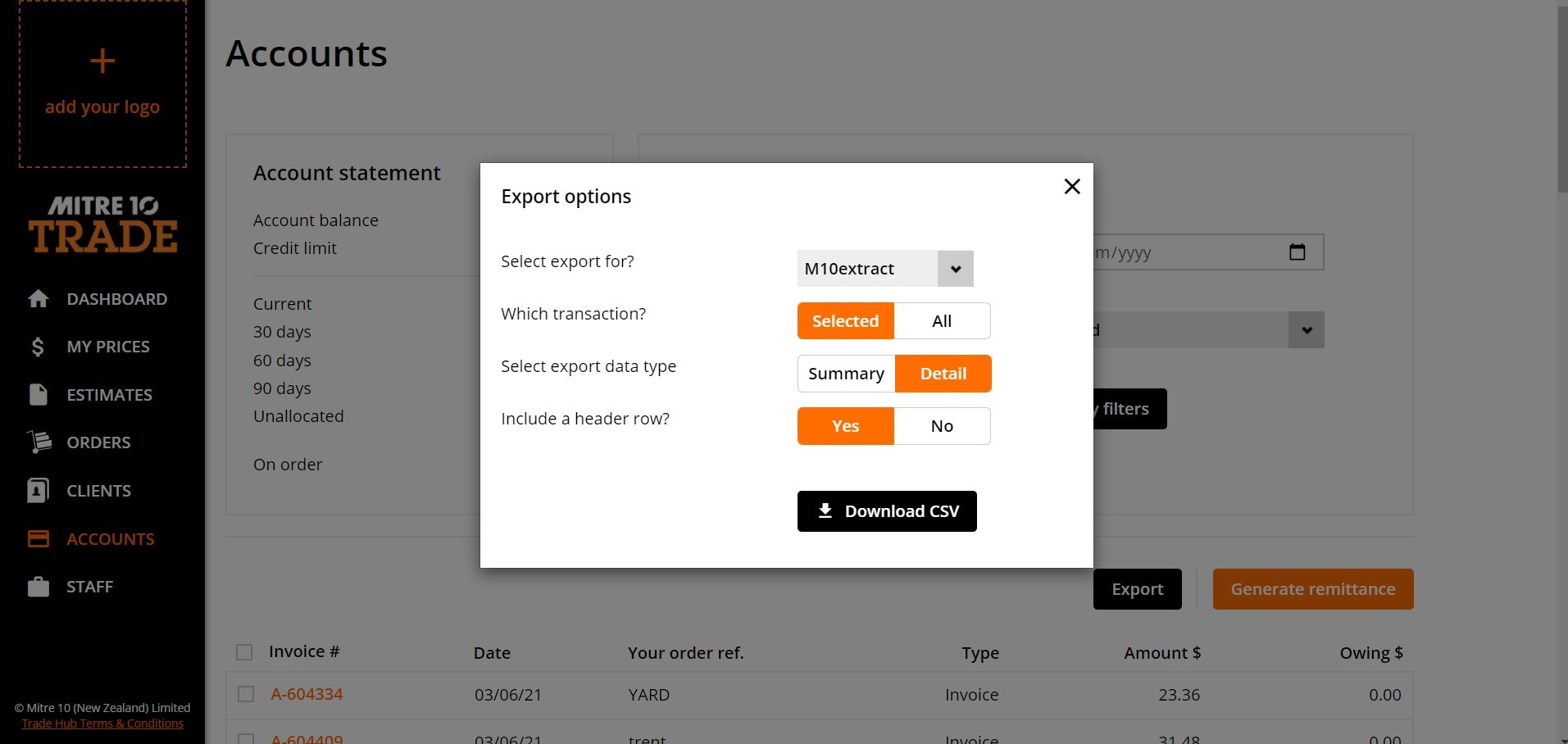
- Click Export button
- Select export for: M10extract
- Check which transaction: Selected
- (This will download only the selected invoices / selecting all with import all invoices on that page)
- Data to be exported: Detailed
- Headers: Yes
- Export as .CSV file. Download CSV
- Login to Step Up Projects
- Under the Allocations heading, select Bills
- Select Import a Bill
- Select Mitre10 .csv option
- Choose file - click open
- This will import your Invoice to the bills section, you can now allocate these invoices and items to jobs.
- If you have a PDF file sent to you can also attach it to the individual bill.
- If Auto Mapping references have been setup and the bills imported have the correct references this can speed up the allocation process.

Comments
0 comments
Article is closed for comments.