
Setting up and configuring your settings
- Account numbers have been created for individual jobs.

- Once a directive is saved any invoice received that contains that reference will be automatically mapped to that job. All that remains to be done is to map to a specific work section. The magic wand icon in the upper left of the invoice indicates that it has auto-mapped to the job.
- In the example below the electrician has included the reference "Stewart" with their invoice as advised, and the invoice has therefore auto-mapped to the 220 Stewart Road job.

Suppliers
Here you can view and add your suppliers, these suppliers can be selected when creating bills.
If you have connected your Step Up Projects account to Xero you can Sync your Xero Suppliers to Step Up Projects.
To add your suppliers manually
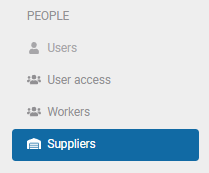
- Select Suppliers under the People heading
- Click the +Add new Supplier button

- Enter in the supplier details

- Click Create

Comments
0 comments
Article is closed for comments.